Arduino Libraries Download and How to Use Them in Your Projects
Last Updated on May 10, 2026 by Engr. Shahzada Fahad
Table of Contents
Download Arduino Libraries, Description:
Arduino Libraries Download and Projects they are used in– In this article, I am going to share with you Top Arduino, Nodemcu ESP8266, and ESP32 libraries and their download links along with the projects links they are used in. So far I have worked on more than 600 projects. All these projects were developed only using the libraries that I am about to share with you guys.
The reason I am writing this article is just that my followers on YouTube channel “Electronic Clinic” keep asking for the download links of the libraries. So that’s why I decided to write a complete article explaining each and every library along with the download link and the projects they are used in.
Note: Read my Article on the USB-C type Arduino Nano.
So without any further delay, let’s get started!!!
Arduino IDE and built-in Libraries:
The Arduino IDE itself comes with some built-in libraries which you can find by clicking on the Sketch menu > include library.
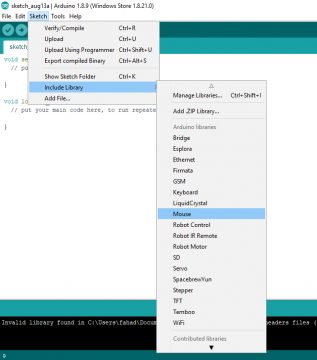
You will find a long list of the Libraries which are already installed. You simply click on the library and it’s added in the Arduino IDE. But there are situations when you need some other libraries to complete a certain project. Let’s start with the most commonly used Arduino libraries.
How to Install Arduino Libraries
-
Library Manager (Easiest): Open Arduino IDE → Sketch → Include Library → Manage Libraries…. Search for the library name and click Install.
-
ZIP Install: If you downloaded a library from GitHub, go to Sketch → Include Library → Add .ZIP Library… and select the downloaded file.
-
Manual Install: Download the library, unzip the folder, and move it to your Arduino libraries folder (typically located in Documents/Arduino/libraries). Restart the IDE for the changes to take effect.
How to Update Outdated Libraries
-
Open the Library Manager (Sketch > Include Library > Manage Libraries).
-
Look for entries that say “Updateable” or have a blue “Update” button next to them.
-
Click Update to get the latest version. This is critical as newer versions often fix bugs and add support for newer boards.
Arduino Libraries Download and Projects
LiquidCrystal 16×2 LCD Library and the projects it’s used in
Download LiquidCrystal Library : LiquidCrystal
16×2 LCD Arduino based Projects:
Adafruit_Fingerprint library
Download Adafruit_Fingerprint Arduino Library: Adafruit_Fingerprint
Arduino Fingerprint module based Projects:
Analog pH meter Arduino library
Download AnalogPHMeter Arduino Library: AnalogPHMeter
pH Sensor Arduino Baed Projects:
DHT11 Arduino Library
Download DHT11 Arduino Library “Temperature and Humidity Sensor”: DHT
DHT11 Arduino Code and projects it’s used in:
Arduino Weather Station using DHT11
Weather Station using nodemcu and Blynk
Send Sensors Data in an Email message
Sensor Data on Graphs using arduino
Bluetooth-based Temperature Monitoring
request Temperature Data using Gsm
Real-Time Clock Module RTClib Arduino Library Download
Download RTClib RTC Arduino Library: RTClib
Real-Time Clock Arduino based Project:
Arduino RTC DS3231 Time and Date display on a 16×2 LCD
HX711 Arduino Library
Download HX711 Arduino Library “HX711 load cell”: HX711
Arduino load cell project based on the HX711:
HX711 Load cell or Strain Gauge and Arduino
Arduino HX711 and Load cell weight measurement and calibration
Voice Recognition V3 Library for Arduino
Download: VoiceRecognitionV3 Arduino library : VoiceRecognitionV3
Voice recognition module based multi commands training project:
Voice Recognition Module v3.1, multi-language commands training Arduino
Neo 6M GPS Module Arduino Library
Download TinyGPSPlus Library: TinyGPSPlus
GPS Module based projects in which TinyGPSPlus library is used:
Arduino Neo 6m GPS module Interfacing, Programming, Library
Nodemcu GPS Tracker using Arduino Nodemcu esp8266 and Blynk
Car accident location tracking using GSM, GPS, and Arduino
softwareSerial Library
This is one of the most frequently used libraries. The software serial library is used for creating Serial Ports. You actually don’t need to download this library, it’s already available in the Arduino IDE. All you need is just to use this library. Check some of the following projects in which the software serial library is used.
softwareSerial Arduino based projects:
IOT Water level monitoring using Ultrasonic Sensor
IOT light dimmer using Arduino and Nodemcu esp8266 wifi module
Nodemcu ESP8266 IOT Power Lines Mains frequency monitoring 50Hz
MFRC522 Arduino Library created for the RFID Module
Download MFRC522 library: MFRC522
MFRC522 RFID module Arduino based projects:
Arduino RFID Servo Motor Control system for Car Parking “MFRC522”
Bike anti theft system using MFRC522 RFID module
RFID & GSM based student Attendance Alert message to parents
RFID based students attendance system with message Alert
max6675 Arduino Library created for the K type thermocouple
Download max6675 library : max6675
hmc5883l digital compass Arduino Library
Download HMC5883L Arduino library: HMC5883L
HMC5883L Arduino tutorial:
hmc5883l arduino,arduino compass,magnetometer arduino, compass navigation
Servo Arduino Library
Download Servo Arduino Library: Servo
Arduino Servo Motor Tutorial with a detailed explanation:
Servo Motor Arduino code and its Power Supply, Advantages & Application
Arduino RFID Servo Motor Control system for Car Parking “MFRC522”
Arduino TFT Touch Screen Libraries
The following are the libraries used with the TFT touch screen. There use is already explained in the following projects.
Download Adafruit_TFTLCD library Arduino : Adafruit_TFTLCD
Download: glcd Arduino Library glcd
Download: TouchScreen Arduino library TouchScreen
Download: UTFT library for Arduino
Download: UTFT_Buttons library for Arduino UTFT_Buttons
Download: UTFT_CTE library UTFT_CTE
Download: UTouch library for Arduino UTouch
Download: TFT library for Arduino TFT
Arduino TFT Touch Screen based Projects:
Arduino Mega Touch Screen GUI | Mega HMI Touch Screen |TFT 5 inch LCD
Android HMI development- control HMI touch screen using Bluetooth “TFT touch screen”
Ubidots Arduino Libraries
Download: ubidots-esp8266-master Arduino library ubidots-esp8266-master
Download: ubidots-mqtt-esp-master Arduino library ubidots-mqtt-esp-master
Ubidots Arduino IOT based Projects:
Ubidots Nodemcu Light Intensity monitoring using Gauges and Charts
Ubidots IOT Platform Control and Monitoring using Nodemcu esp8266 wifi Module
Nodemcu ESP8266 Libraries
Following are the libraries used with the Nodemcu ESP8266 Wifi Module and Blynk. The use of these libraries is explained in the projects given below.
Download: Blynk library Blynk
Download: SimpleTimer library SimpleTimer
Download: BlynkESP8266_Lib Blynk ESP8266 Library BlynkESP8266_Lib
Download: aREST library for Arduino aREST
Arduino Nodemcu ESP8266 wifi module and Blynk based projects:
Nodemcu ESP8266 DS18b20 Waterproof Temperature Sensor Monitoring
Multiple Nodemcu esp8266 network monitoring using Blynk
Wireless vibration sensor, iot vibration sensor, Industrial vibration sensor “nodemcu esp8266”
Arduino and Nodemcu two way communication, Control and Monitoring
Most Commonly Used Libraries Explained
-
Wire.h: Essential for I2C communication; used for OLEDs, LCDs, and sensors.
-
Servo.h: Simplifies PWM signal generation to control the angle of Servo motors.
-
SoftwareSerial.h: Allows you to create additional serial ports on digital pins, useful for Bluetooth modules or GPS.
-
LiquidCrystal.h: The standard library for controlling character LCDs (16×2, 20×4).
Arduino Timer related Libraries
Download Time library Arduino: Timer
Download TimerOne library Arduino: TimerOne
Download SimpleTimer Arduino library: SimpleTimer
these libraries are already used in some of the above projects. the SimpleTimer library is used in the Nodemcu based projects.
Arduino BMP180 Library
Download Adafruit_BMP085 Arduino library: Adafruit_BMP085
The above library is specially created for the BMP085 but it can also be used with the BMP180 sensor.
projects in which I have used this library are given below:
Nodemcu and BMP180 “temperature, pressure & Altitude” internet of things project “iot”
DallasTemperature Arduino Library
Download DallasTemperature Arduino library: DallasTemperature
Following is the project it is used in:
Arduino DS18B20 digital Temperature Sensor Library, wiring & Programming
Nodemcu ESP8266 DS18b20 Waterproof Temperature Sensor Monitoring
Firebase Arduino Library
Download: FirebaseArduino library FirebaseArduino
FirebaseArduino tutorial:
Nodemcu firebase database Tutorial
IRremote Library Arduino
Download IRremote Library Arduino: IRremote
IRremote based project:
Arduino IR Remote based Fan speed controlling, Library, circuit, & code
MaxMatrix Arduino library
Download: MaxMatrix Arduino Library MaxMatrix
MaxMatrix library based projects:
8×8 LED Matrix MAX7219 Control using Bluetooth and Arduino
SPI Arduino Library
Download SPI Arduino Library: SPI
Pulse Sensor Arduino Library
Download PulseSensor_Playground Library: PulseSensor_Playground
Arduino Pulse Sensor based project:
Pulse Sensor/ Heartbeat Rate/ Heart rate measurement using Arduino & Bluetooth
Pulse Sensor/ Heartbeat Rate (BPM) measurement using Arduino & Pulse Sensor “Stable BPM value”
VirtualWire Arduino
Download VirtualWire Arduino Library :VirtualWire
Stepper Motor Arduino Library
Download Stepper Arduino Library: Stepper
Stepper Motors based Tutorials:
UniPolar and Bipolar Stepper Motors Speed and Position Control
CD ROM Stepper motor Arduino L298n + Joystick controlled speed and Direction Control
OneWire Arduino
Download OneWire Arduino Library : OneWire
Arduino OneWire library based tutorial:
Arduino DS18B20 digital Temperature Sensor Library, wiring & Programming
16×2 i2c LCD “liquid crystal display”:
related tutorial:
Countdown timer using Arduino, LCD 16×2 i2c & 4×3 Keypad
ESP32 Bluetooth Library :
WiFi Library
FireBase.Json
Firebase ESP32 Client FirebaseJason WiFi
Firebase_ESP32_Client FirebaseJson WiFi
Max30100 Library: MAX30100_library
Project
Max30100 pulse Oximeter Arduino Code, circuit, and Programming
LowPower Library for Arduino Sleep Modes:
Of course, there are thousands of other libraries, but these are the ones that are most frequently used. There are so many other libraries that I have used in different projects.
Troubleshooting — Common Library Problems and How to Fix Them
Problem 1: “No such file or directory” error when compiling
Cause: The library is not installed, or it was not installed correctly and the Arduino IDE cannot find the header file.
Fix:
– Go to Sketch menu > Include Library > Manage Libraries. Search for the library by name and click Install. This is the safest and most reliable way to install any library.
– If you installed manually by copying a folder, make sure the folder name exactly matches the library name without any extra text. For example, the DHT library folder must be named “DHT-sensor-library” or simply “DHT” — not “DHT-master” or “DHT-sensor-library-main”. Rename it if needed.
– After installing any library manually, close the Arduino IDE completely and reopen it. The IDE only loads libraries at startup.
– Check that the library folder is placed inside the correct location: Documents > Arduino > libraries on Windows, or home/Arduino/libraries on Linux and Mac.
Problem 2: Library installs successfully but the code still does not compile
Cause: There are two versions of the same library installed, or the library has a dependency that is also missing.
Fix:
– Go to your Arduino libraries folder (Documents > Arduino > libraries) and check if there are two folders with similar names for the same library. Delete the older one and keep only the latest version.
– Some libraries depend on other libraries to work. For example, Adafruit_SSD1306 requires Adafruit_GFX to also be installed. Read the library description in the Library Manager carefully — it usually lists all required dependencies. Install them all.
– If the Adafruit Library Manager shows a prompt asking to install dependencies, always click Install All — never skip dependencies.
Problem 3: “Sketch uses too much program storage space” error
Cause: The compiled code with all the libraries is larger than the flash memory available on your Arduino board.
Fix:
– Arduino Uno and Nano have only 32KB of flash memory. Large libraries like TFT display drivers and Blynk together can easily exceed this.
– Switch to Arduino Mega which has 256KB of flash memory — 8 times more than Uno. This alone solves the problem in most cases.
– Remove any library you are including but not actually using in your code. Every included library adds to the compiled size even if you only use one function from it.
– Use the F() macro to store constant strings in flash memory instead of RAM. Change Serial.println(“Hello”); to Serial.println(F(“Hello”)); This frees up RAM and sometimes allows the sketch to fit.
Problem 4: “Low memory available, stability problems may occur” warning
Cause: Your sketch and libraries together are using most or all of the Arduino’s RAM (SRAM). Arduino Uno only has 2KB of RAM.
Fix:
– This warning appears when more than 75% of SRAM is used. Above 90% the Arduino will behave erratically — random resets, frozen displays, or wrong sensor readings.
– Use the F() macro for all your Serial.print strings as described above. Each string stored in RAM takes up precious bytes.
– Avoid using the String class in your code. Use char arrays instead. String objects fragment memory over time and cause crashes.
– Remove unused variables and arrays. Even a 50-byte array you declared and forgot about matters on a 2KB RAM microcontroller.
Problem 5: Library worked before but now gives errors after updating Arduino IDE
Cause: A newer version of the Arduino IDE introduced stricter compiler rules, or a library update broke compatibility.
Fix:
– Go to Sketch > Include Library > Manage Libraries, find the library, and check if a newer version is available. Update it.
– If updating makes things worse, roll back by selecting the older version from the version dropdown in the Library Manager before clicking Install.
– Some very old libraries written before 2015 are not compatible with newer Arduino IDE versions. Search for a modern replacement or fork of the library on GitHub.
– Check the Arduino forums or GitHub issues page for the library — other users will have reported the same problem and a fix is often already posted.
Problem 6: Blynk library connects to WiFi but the app shows the device as offline
Cause: Wrong Auth token, wrong Blynk server address, or the Blynk platform migrated from legacy to the new Blynk 2.0.
Fix:
– Blynk completely changed their system from the old Blynk legacy to Blynk 2.0. The old library (version 0.6.x) does not work with the new Blynk app. You must install the new Blynk library (version 1.0 or higher) from the Library Manager.
– In the new Blynk 2.0, get your Auth token from the Blynk web dashboard at blynk.cloud — not from the mobile app as in the old system.
– Make sure you are using the correct server: blynk.cloud for the new system, or the regional server for legacy accounts.
– Double check your WiFi SSID and password in the code — even one wrong character or an extra space will prevent connection.
Problem 7: Firebase library connects but data is not appearing in the database
Cause: Firebase database rules are set to deny reads and writes, or the authentication is not set up correctly.
Fix:
– In your Firebase console, go to Realtime Database > Rules and temporarily set both read and write to true for testing. Remember to set proper security rules before making your project public.
– Make sure you are using the correct database URL — it should look like https://your-project-name-default-rtdb.firebaseio.com
– The Firebase ESP8266 and ESP32 libraries by Mobizt are the most reliable. Make sure you have installed the correct one for your board.
– Check that your ESP32 or ESP8266 time is synchronized using NTP before connecting to Firebase. Firebase authentication requires correct system time.
Frequently Asked Questions
What is the safest way to install an Arduino library?
The safest and easiest method is through the Arduino IDE Library Manager. Go to Sketch > Include Library > Manage Libraries, type the library name in the search box, and click Install. This method automatically handles dependencies, places the library in the correct folder, and makes it easy to update later. Only install libraries manually from ZIP files or GitHub when the library is not available in the Library Manager, which is rare for popular libraries.
Can I use the same library on Arduino Uno, ESP32, and ESP8266?
Most popular libraries are compatible across multiple boards, but not all. Libraries that depend on AVR-specific hardware registers will not compile on ESP32 or ESP8266. Libraries written by Adafruit, the Arduino team, and most professional developers are usually cross-platform. Always check the library’s GitHub page or readme file for a compatibility list. If a library does not compile on your board, search for an equivalent library specifically written for that board.
How do I know which version of a library to install?
Always install the latest stable version unless a specific tutorial tells you to use an older version. In the Library Manager, the latest version is shown by default. If you follow a tutorial that uses older code and the latest library breaks compatibility, look for the version number mentioned in the tutorial and select that exact version from the version dropdown in the Library Manager before installing.
What happens if I delete a library by mistake?
Nothing permanent — you can reinstall any library from the Library Manager or GitHub at any time. Your sketches that used the library will give compilation errors until you reinstall it, but your code files are not affected. Deleting a library folder from Documents > Arduino > libraries completely removes it. Reinstalling restores everything.
Can I install libraries on Arduino IDE 2.0 the same way as Arduino IDE 1.x?
Yes, the Library Manager works exactly the same way in Arduino IDE 2.0 — go to Sketch > Include Library > Manage Libraries. The main difference is that IDE 2.0 has an improved Library Manager panel on the left sidebar that makes searching and installing even easier. All your existing installed libraries from IDE 1.x are also recognized by IDE 2.0 automatically since they share the same libraries folder location.
Why does my library work on one computer but not on another?
Libraries are stored locally on each computer in the Documents > Arduino > libraries folder. When you move your sketch to a different computer, the libraries are not transferred with it — you must reinstall them on the new machine. The easiest way to transfer all your libraries is to copy the entire Documents > Arduino > libraries folder from the old computer to the same location on the new one.
How do I install a library that is only available on GitHub and not in the Library Manager?
Go to the GitHub page of the library and click the green Code button, then click Download ZIP. In Arduino IDE, go to Sketch > Include Library > Add .ZIP Library and select the downloaded ZIP file. The IDE will install it automatically. Make sure the downloaded folder name does not contain “-main” or “-master” at the end — if it does, rename the folder inside the ZIP before installing, or just rename it after installation in Documents > Arduino > libraries.
What is the difference between a library and a header file?
A header file (the .h file you include at the top of your sketch) is part of a library. The library contains the full code — the .h header file and one or more .cpp source files. When you write #include “DHT.h” in your code, you are telling the compiler to use the DHT library’s header file which then gives your sketch access to all the functions in that library. You cannot use a library by just downloading the .h file alone — you need the complete library folder with all its files.
If you cannot find a specific library mentioned in any of the projects on this site, leave a comment below with the library name and I will provide the direct download link.
Discover more from Electronic Clinic
Subscribe to get the latest posts sent to your email.




hi sir i can’t download any libraries to my arduino software it says java error ?
sir i cant download any librarys
Is there any library for TOF10120 SENSOR
read my articles on TOF10120